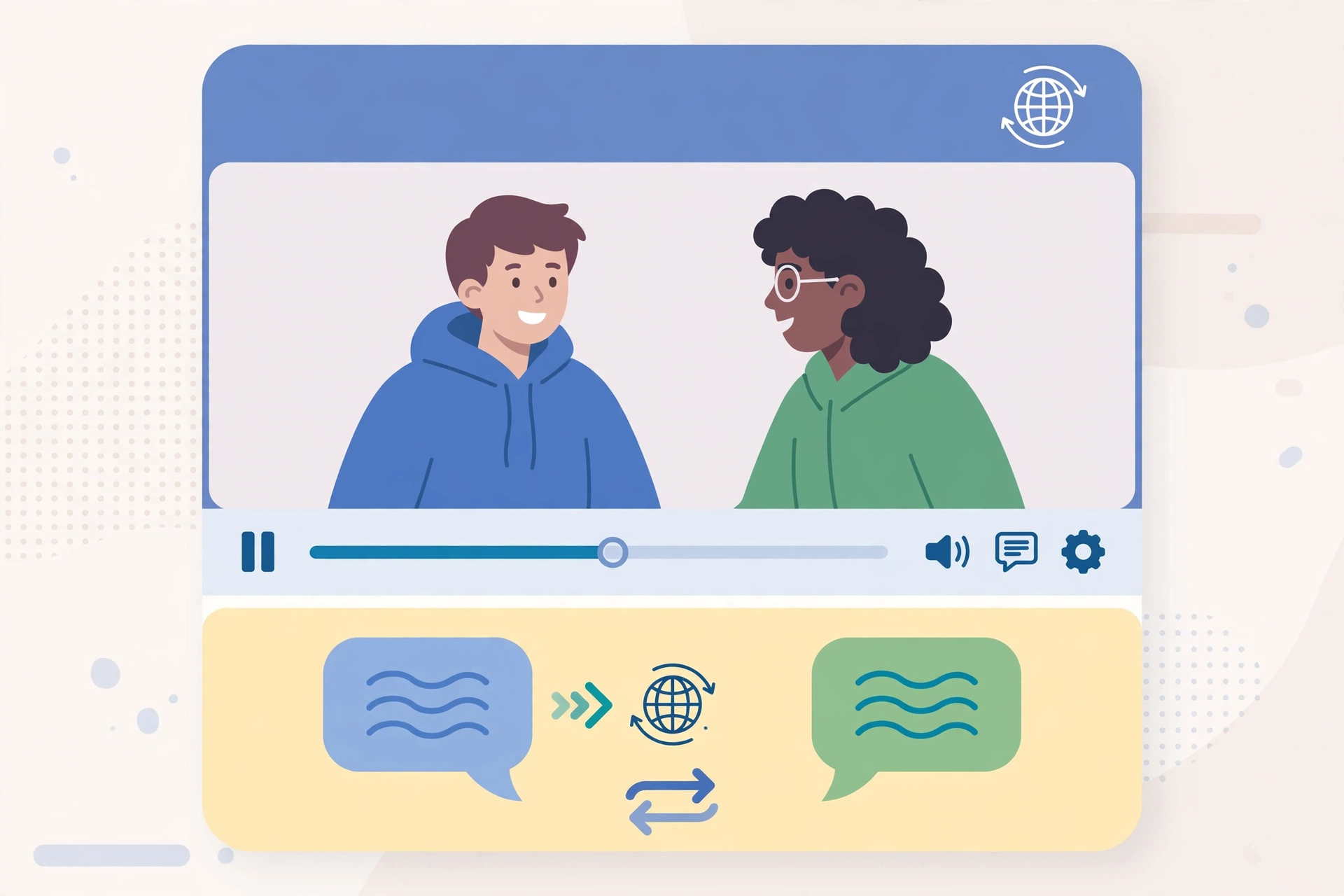
Video Language Converter Online Free: Translate Any Video Easily
You found a perfect tutorial video, but it is in Spanish. A client sent you a product demo in Hindi. Your favorite creator posted something amazing — in Korean. Language barriers used to mean missing out, but not anymore. A video language converter online free tool can translate a video's spoken audio or subtitles into your language in minutes, right from your browser.
In this guide, you will learn how video language conversion works, the three main free methods (auto-translated subtitles, AI dubbing, and the CapCut method), and step-by-step instructions for each. If you can upload a file and click a button, you can do this.
How Video Language Conversion Works
Before jumping into the tools, it helps to understand what happens behind the scenes. Most free converters use a three-stage pipeline:
- Speech recognition. The tool listens to the video's audio and converts the speech into written text (transcription), detecting the original language automatically.
- Machine translation. That text is translated into your target language using the same kind of engine that powers tools like Google Translate.
- Output generation. Depending on the method you choose, the translated text becomes either new subtitles burned onto the video, a translated subtitle file you can toggle on and off, or a brand-new AI-generated voiceover (dubbing) that replaces or overlays the original audio.
Knowing this pipeline helps you set realistic expectations: translation quality depends on how clear the original audio is. A clean, slow-spoken tutorial translates beautifully; a noisy vlog with slang and overlapping voices will need manual cleanup.
Method 1: Auto-Translate Subtitles (Fastest and Most Reliable)
The simplest approach is to generate translated subtitles for a video. This works with almost any tool, is usually completely free, and gives you full control to fix mistakes.
Best for: YouTube videos, online courses, and tutorials where reading subtitles is fine.
Step-by-step
- Upload your video to a free online subtitle generator or open the video on YouTube if it is already there.
- Generate captions in the original language. Most tools auto-detect the spoken language and create a transcript within a few minutes.
- Choose "Translate" and pick your target language. The tool will convert every caption line. Review the result — fix any obvious errors, names, or technical terms the machine got wrong.
- Export or apply the subtitles. Download the translated subtitle file (usually .SRT format) or let the tool burn the subtitles directly into the video, then download the finished file.
Tip: On YouTube itself, open the video, tap the gear icon, go to Subtitles, and choose Auto-translate to your language. It is instant and free, though timing can be slightly off on fast speech.
Method 2: AI Dubbing (Translated Voiceover)
If you want the video to actually speak your language, AI dubbing is the answer. These tools replace the original voice with an AI-generated voice reading the translation. A few years ago this sounded robotic; today's voices are surprisingly natural.
Best for: Presentations, marketing videos, and educational content where listening beats reading.
Step-by-step
- Pick a free AI dubbing tool that offers a free tier (most give you a few minutes of dubbing per month at no cost).
- Upload your video and select the source and target languages. Some tools auto-detect the source language for you.
- Choose a voice. Free tiers usually offer a handful of male and female voices. Pick one that roughly matches the tone of the original — a calm voice for tutorials, an energetic one for promos.
- Generate and preview. Processing takes a few minutes depending on video length. Listen to the result and check that key terms and names are pronounced acceptably.
- Download the dubbed video. Free plans sometimes add a small watermark or limit video length — check the tool's free limits before you start a long project.
Honest note: Free dubbing usually caps you at a few minutes per video or per month. For a short clip it is perfect; for a full-length course, subtitle translation (Method 1) is the more practical free route.
Method 3: Translate with CapCut (Free and Familiar)
If you already edit videos on your phone, CapCut's built-in auto-caption and translation features make it a convenient all-in-one option — and its core features are free.
Step-by-step
- Import your video into a new CapCut project.
- Generate auto captions in the original language using the Text > Auto captions feature.
- Translate the captions to your target language from the caption settings.
- Optional: generate voiceover. CapCut's text-to-speech can read the translated captions aloud in a natural voice. Mute the original audio track if you want a clean dubbed result.
- Export the video in your preferred resolution and share it.
This method is great because you stay inside one familiar app, and you can restyle the subtitles to match your brand at the same time.

Choosing the Right Method: A Quick Comparison
| | Subtitle translation | AI dubbing | CapCut method | |—|—|—|—| | Cost | Free, generous limits | Free tier with minute caps | Free | | Speed | Fast | Slower (processing time) | Medium | | Best for | Learning, tutorials | Sharing, presentations | Creators editing anyway | | Quality risk | Occasional mistranslations | Robotic names, lip-sync mismatch | Depends on your cleanup |
For most everyday needs, start with subtitle translation — it is fast, free, and easy to correct. Move to dubbing when the viewing experience matters more than speed.
Tips for Better Translation Results
- Start with clear audio. If the original audio is muffled or full of background music, transcription suffers. Use videos with clean speech when possible.
- Always review the transcript first. Fixing errors in the original-language text before translating prevents mistakes from multiplying.
- Watch out for names and jargon. AI often mistranslates brand names, technical terms, and slang — keep a list of terms to check in every video.
- Speak in short sentences. If you are creating the video yourself and plan to translate it, short simple sentences translate far more accurately.
- Check timing after translation. Translated sentences are often longer or shorter than the original, throwing subtitles out of sync. Most tools let you adjust timing with a simple drag.
Frequently Asked Questions
Is there really a free video language converter online?
Yes. Many tools offer genuinely free subtitle generation and translation, and several provide a few minutes of free AI dubbing each month. For short videos and occasional use, you may never need to pay.
Which languages are supported?
The most widely supported languages include English, Spanish, Hindi, Urdu, Arabic, French, German, Portuguese, Turkish, Chinese, and dozens more. Coverage is best for major world languages; less common regional languages may have limited dubbing voices but usually still work for subtitles.
How accurate is the translation?
For clear, well-spoken content, accuracy is typically very good — enough to fully understand tutorials, talks, and vlogs. Accuracy drops with heavy accents, slang, background noise, or technical content, but a quick review pass fixes most issues.
Can I translate a YouTube video without downloading it?
Yes. YouTube's built-in auto-translate subtitles work on any video with captions enabled — no download needed. Some third-party tools can also process a video from its link, though uploading the file tends to be more reliable.
Will the dubbed voice sound like the original speaker?
Modern AI dubbing sounds natural, but free tiers use generic stock voices rather than cloning the original speaker. Expect a pleasant but different voice — and do not expect lip movements to match perfectly.
Related Articles
- CapCut Video Editor Pro: Features, Tips and Free Alternatives
- AI Video Generator Free: Create Stunning Videos with AI
- TikTok Video to Ringtone Android: Easy Conversion Guide
Conclusion
Language should never stop you from enjoying or sharing a great video. With subtitles for speed and accuracy, AI dubbing for a polished experience, or CapCut for an all-in-one edit, you can translate virtually any video in minutes. Start with subtitles, review the output, and reach for dubbing when the project deserves it.