Android 12 Notification Features: The Complete Guide to Mastering Alerts
Notifications are the most-used — and most annoying — part of any smartphone. Android 12 brought one of the biggest notification overhauls in years, giving you finer control over what interrupts you and how. If you've ever missed an important message because you swiped it away, or been bombarded by alerts you never asked for, this guide is for you.
We'll cover every major Android 12 notification feature, per-app customization, and hidden tricks most people never discover.
What's New in Android 12 Notifications
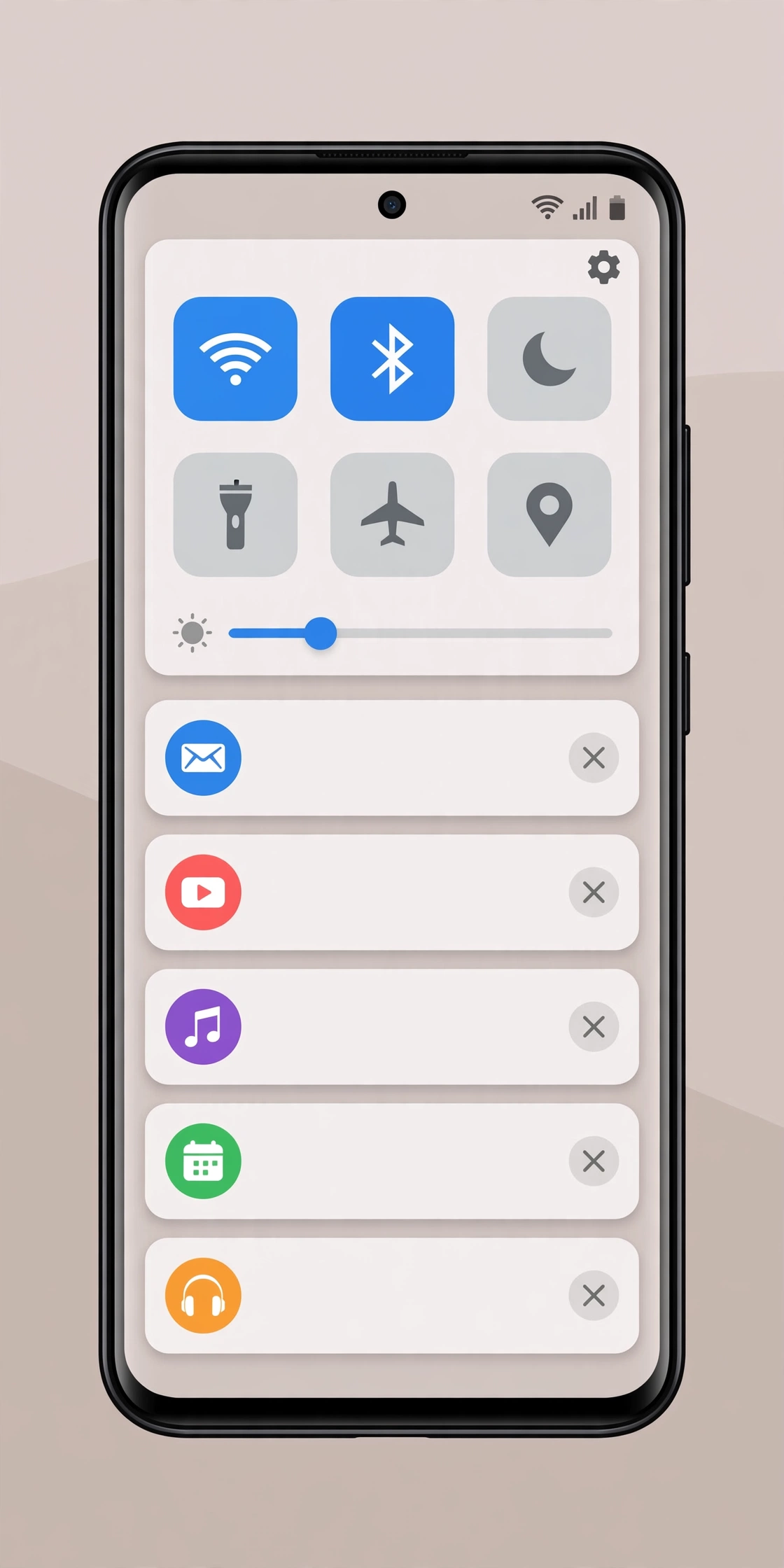
Android 12 redesigned notifications with a cleaner look and smarter behavior: larger app icons and bolder text, a smoother notification shade, conversations with real people separated from general app alerts, and easier access to snoozing, muting, and per-app settings right from the notification itself.
Even if your phone has since updated past Android 12, these features carried forward — so this guide stays useful on newer versions too.
Notification Channels: Control Every App, Granularly
The most powerful notification feature on Android is one many people don't know about: notification channels (sometimes called categories). Instead of one on/off switch per app, channels let you control different types of alerts from the same app independently.
For example, in WhatsApp you might have separate channels for message notifications, group notifications, and call notifications. You can silence group chats while keeping direct messages loud.
How to Customize Channels
- Go to Settings > Apps and tap the app you want to adjust.
- Tap Notifications.
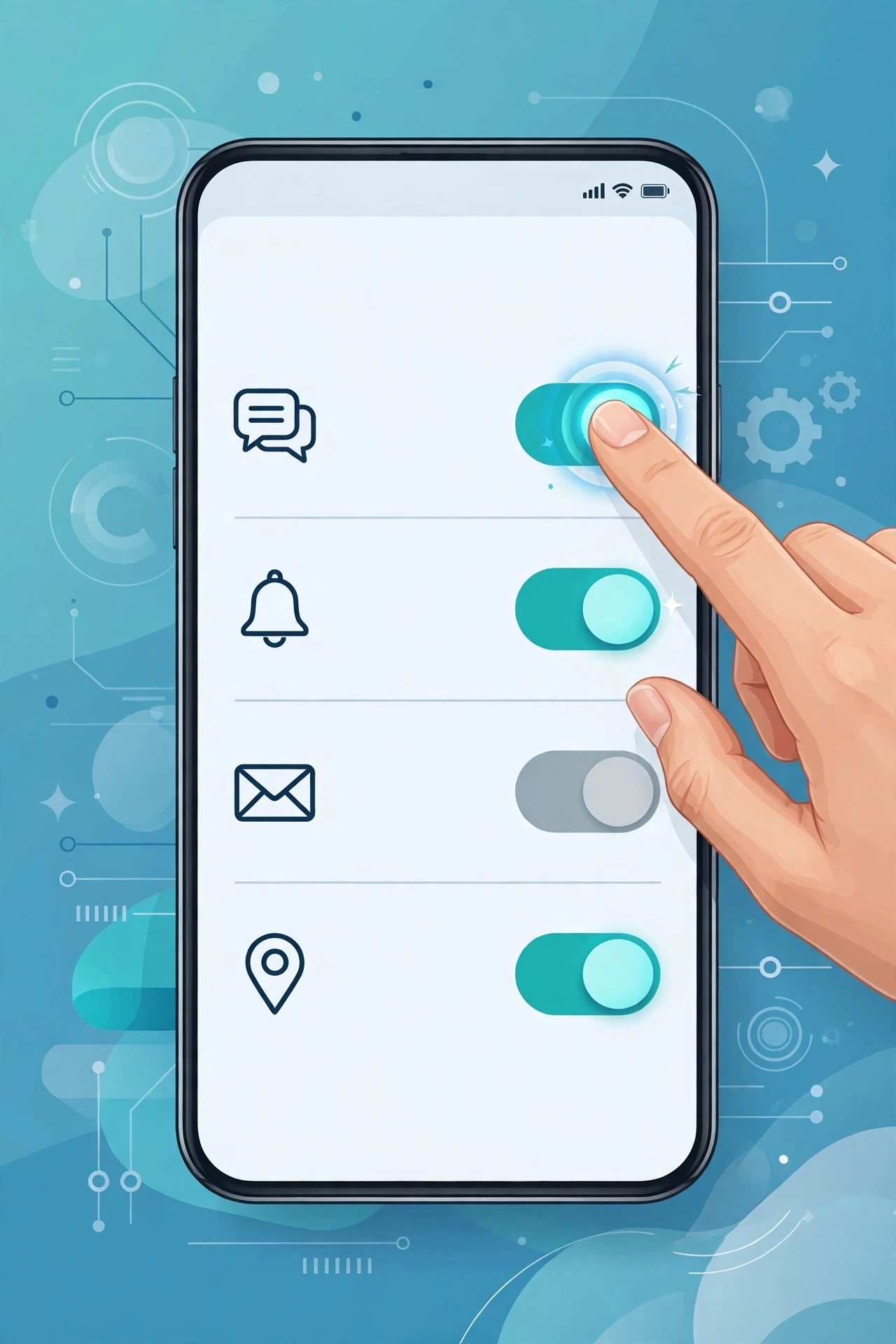
- You'll see a list of notification categories — toggle each one on or off individually.
- Tap a category to fine-tune it: choose its sound, vibration pattern, whether it appears on the lock screen, and whether it can pop up over other apps.
Spend ten minutes doing this for your five noisiest apps and your phone becomes dramatically calmer.
Conversation Notifications: Never Miss a Real Message
Android 12 treats conversations — messages from actual people — as first-class citizens:
- Priority conversations: Long-press a messaging notification and tap Priority. That person's messages will appear at the top of your notification shade, can break through Do Not Disturb, and show a preview on your lock screen.
- Bubbles: Turn on bubbles for your favorite contacts and their chats float in a small bubble over other apps — like Facebook Messenger's chat heads, but system-wide. Tap to open, drag to move, flick to dismiss.
- Conversation widget: Add the Conversation widget to your home screen to see recent messages from priority contacts at a glance.
How to Set a Priority Conversation
- When you get a message notification, long-press it.
- Tap the settings gear or Priority option.
- Choose Priority instead of Default.
To enable bubbles: Settings > Apps > [messaging app] > Notifications > Bubbles > "All conversations can bubble."
Notification History: Find Alerts You Accidentally Dismissed
We've all done it — swiped away a notification, then wondered what it said. Notification History is your safety net: it keeps a log of every notification from the last 24 hours.
How to Turn It On
- Go to Settings > Notifications.
- Tap Notification history.
- Toggle it On.
Once enabled, you'll see a chronological list of dismissed notifications, including ones from apps you've since closed. Tap any entry to jump back into the app. Note: it only starts recording after you turn it on — it can't recover notifications from before.
Snooze Notifications: Deal With It Later
Not every alert needs action right now. Snoozing temporarily hides a notification and brings it back later:
- Swipe slightly on a notification (don't swipe it all the way away).
- Tap the clock/snooze icon.
- Choose when it should reappear: 15 minutes, 30 minutes, 1 hour, or 2 hours.
This is perfect for reminders you can't act on immediately — snooze the email until you're at your desk, or the message until after your meeting.
Do Not Disturb, Done Right
Do Not Disturb (DND) is far more flexible than most people realize:
- Schedules: Set automatic DND for sleep hours, work meetings, or any recurring time. Settings > Sound & vibration > Do Not Disturb > Schedules.
- Exceptions: Allow calls from starred contacts, repeat callers (someone calling twice within 15 minutes — usually urgent), alarms, and priority conversations even when DND is on.
- What gets hidden: Choose whether notifications are fully silenced, hidden from the lock screen, or just kept out of the status bar.
A well-configured DND means your phone stays silent at night but your mom's emergency call still gets through.
Lock Screen Notifications: Privacy vs. Convenience
You can decide exactly what shows on your lock screen:
- Go to Settings > Notifications > Notifications on lock screen.
- Choose: Show conversations, default, and silent, Hide silent conversations and notifications, or Don't show any notifications.
For sensitive apps (banking, messages), go further: Settings > Apps > [app] > Notifications > turn off Show on lock screen for specific channels. Your lock screen stays useful without broadcasting private content to anyone glancing at your phone.
Hidden Tricks Most People Miss
1. Mute a chat directly from the notification
Long-press a group chat notification and you'll often find a mute option right there — no need to dig through the app's settings.
2. Turn off notification dots selectively
Those little dots on app icons can be anxiety-inducing. Disable them per app under Settings > Apps > [app] > Notifications > "Allow notification dot."
3. See which apps notify you most
Check Settings > Digital Wellbeing — it shows how many notifications each app sent today. The worst offenders might deserve to be silenced entirely.
4. Quick-reply without opening the app
Most messaging notifications support inline replies — just tap Reply right in the notification shade. It even works from the lock screen.
5. Copy text from notifications
Some notifications let you long-press to select and copy text — handy for grabbing a verification code or address without opening the app.
Taming Notification Overload: A 10-Minute Reset
If your phone buzzes constantly, do this quick audit: check Digital Wellbeing to find your five noisiest apps; open each app's notification settings and switch off channels you don't need (promotions, "we miss you" nudges); set priority conversations for the few people who matter; schedule Do Not Disturb for sleep hours with exceptions for starred contacts; and turn on Notification History so dismissing something is never permanent. Most people cut daily notifications by half with just this routine.
Frequently Asked Questions
Where is notification history on Android 12?
Go to Settings > Notifications > Notification history and toggle it on. It logs all notifications for 24 hours — but only from the moment you enable it.
How do I stop notifications from one app but keep others?
Go to Settings > Apps > select the app > Notifications, then toggle off all notifications or just specific categories. Everything else keeps working normally.
What are notification bubbles and how do I turn them on?
Bubbles are floating chat heads for messaging apps. Enable them under Settings > Apps > [your messaging app] > Notifications > Bubbles, then set "All conversations can bubble" or choose specific contacts.
Can I change the notification sound for just one app?
Yes. Go to Settings > Apps > [app] > Notifications, tap a category, then tap Sound. Different alert types from the same app can each have their own sound.
Why am I not getting notifications from an app?
Check four things: the app's notification toggle, battery optimization (set the app to "Unrestricted" so background alerts aren't killed), Do Not Disturb schedules, and whether you're logged into the app. One of these is almost always the culprit.
Related Articles
- App Name Icon Changer: Customize Your Home Screen
- TikTok Video to Ringtone Android: Turn Sounds Into Ringtones
- Free Call Online: Best Ways to Call Free in 2026
Conclusion
Android 12's notification features give you something rare: genuine control. Between per-app channels, priority conversations, bubbles, snoozing, and history, there's no reason to be at the mercy of your alerts. Take ten minutes to run the reset routine above, and your phone will only speak up when it actually matters.