7 Best Free AI Photo Editors You Can Use Online Right Now
Your gallery is probably full of photos that are almost perfect — bad lighting, a stranger in the background, or a shot too blurry to post. A few years ago, fixing those meant learning Photoshop. Today, a good AI photo editor handles it in seconds, right in your browser, for free.
But not every "free AI photo editor" deserves your time. Some are genuinely useful; others are demos wrapped in a paywall. Here are seven free options actually worth using, what each does best, and where each falls short.
What to Look for in a Free AI Photo Editor
- Real free functionality. Core tools like background removal and enhancement should work without paying — not sit behind a subscription.
- No painful signup. The best editors let you try first and only ask for an account if you want to save work.
- Output quality. One background remover cuts clean edges around hair; another makes a blurry mess. Quality beats feature count.
- No watermarks or harsh limits. A "free" editor that stamps its logo on your photo isn't free for anything you'd share.
1. Adobe Express
Adobe Express offers free browser-based AI tools: background remover, object remover, image resizer, and generative fill for adding or replacing elements. The masking quality is genuinely good, especially on portraits.
You'll need a free Adobe account, and generative features run on limited monthly credits. If you edit only a handful of photos a month, you may never hit the cap.
Best for: Clean background removal and product-style photos.
2. Fotor
Fotor is one of the oldest free online editors. Its free tier includes background removal, a one-click AI enhancer for blurry photos, and simple style effects. The interface is easy enough for a complete beginner.
The free version shows ads, some newer AI features are premium-only, and export resolution is capped. For quick social-media edits, though, it gets the job done.
Best for: Fast one-click fixes of everyday photos.
3. Remini (Web Version)
Remini became famous for turning blurry, low-quality photos into sharp ones — old scans, chat screenshots, badly lit shots — and it still does that job better than almost anything else free.
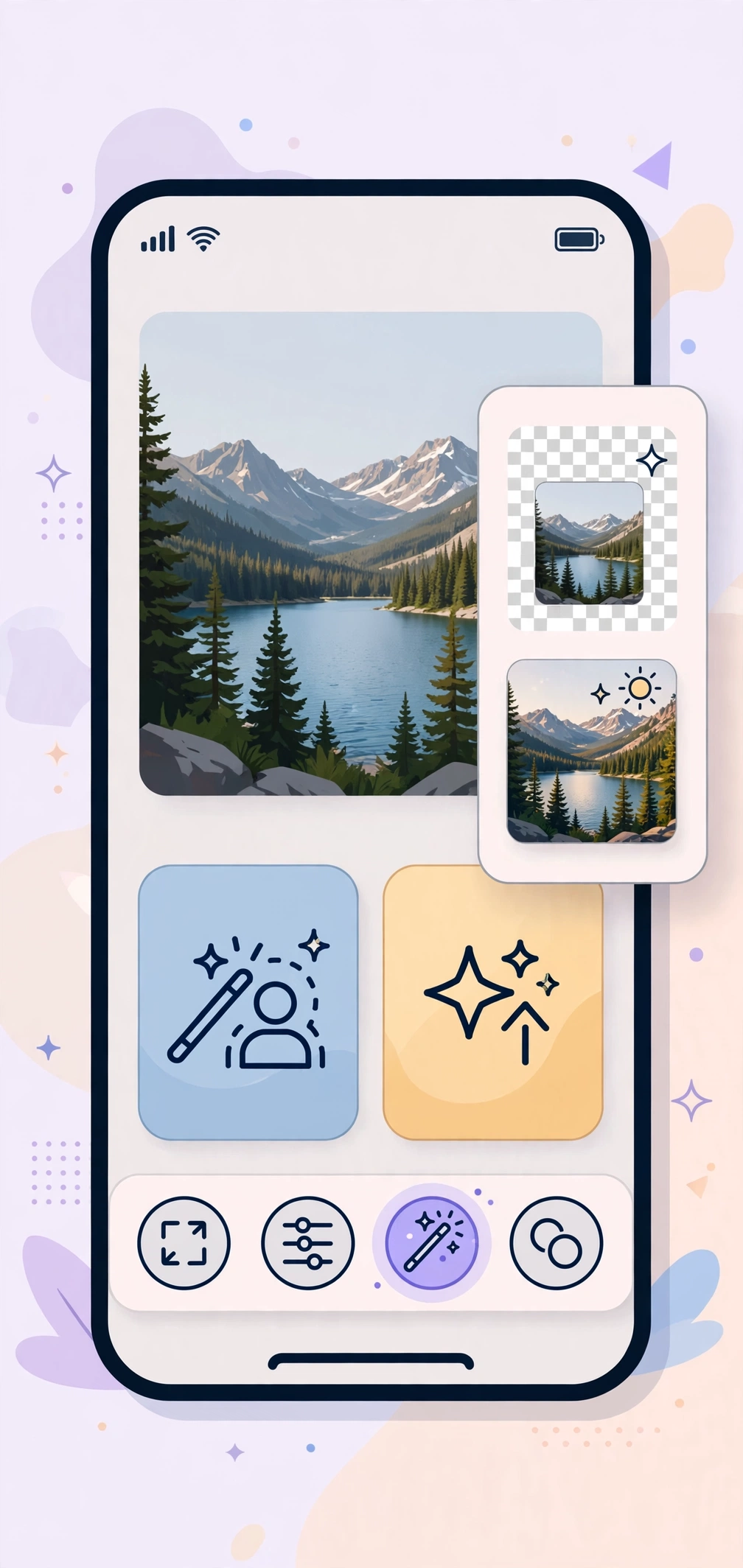
The free plan allows only a few enhancements per day, and faces can occasionally look over-smoothed, like a beauty filter set too high. Save it for photos worth rescuing, not every shot in your gallery.
Best for: Fixing blurry, old, or low-resolution photos.
4. Upscale Media by Pixelcut
This tool does one thing: increases photo resolution up to 4x, free, no account, no watermark. Got a small image you want as wallpaper or a print? This is the fastest route.
It won't fix colors or remove objects — pair it with another editor for that. As a finishing step, it's excellent.
Best for: Enlarging small images for wallpapers and prints.
5. YouCam Online Editor
YouCam packs a lot into its free tier: AI background replacement, object removal, photo-to-cartoon effects, and portrait retouching like blemish removal. It's clearly aimed at selfies, and the portrait tools look smooth and natural.
Some effects require signup, and daily AI generations are limited. Still, for portrait-heavy editing, it's a strong pick.
Best for: Selfies, portraits, and fun style effects.
6. Pixlr (AI Suite)
Pixlr is the closest thing to a free Photoshop in your browser, with AI background removal, generative fill, and image expansion mixed in. There's a beginner-friendly express mode and an advanced editor, so it grows with you.
Free users see ads and the interface can feel busy at first. But for one tool that handles both quick fixes and deeper edits, Pixlr is the most capable free option here.
Best for: Users wanting real editing control plus AI help.
7. remove.bg
If all you need is background removal — for a product listing, profile picture, or thumbnail — remove.bg remains the gold standard. Upload a photo, get a cleanly cut subject on a transparent background in seconds, no account needed.
Free downloads are limited to a smaller resolution, but it's plenty for web and social use. A specialist tool, and the best at its one job.
Best for: Fast, high-quality background removal with zero setup.
How to Use an Online AI Photo Editor: Step by Step
- Pick the right tool. Blurry photo? Remini. Background removal? remove.bg or Adobe Express. General editing? Pixlr or Fotor.
- Open the site on your phone or computer — most work fine in a mobile browser.
- Upload your photo. Higher-quality originals give the AI more to work with.
- Choose the AI feature — usually one clear button like "Remove Background" or "Enhance."
- Review the result. Zoom in on edges, faces, and details before accepting it.
- Touch up manually if needed. A 30-second fix with the refine brush often turns a good result into a great one.
- Download at the highest free quality and save with a clear filename.
Tips for Better Results
- Start with the best original you have. AI can't invent detail that was never captured.
- Don't over-enhance. Running one photo through three enhancers creates a waxy, plastic look. One pass is usually enough.
- Edit faces last. Combine tools in this order: background and color first, face enhancement at the end.
- Keep your originals. AI edits can't be undone later — save the source file first.
- Combine free specialists. Use one tool for backgrounds, another for enhancement, a third for upscaling. Chaining free tools gives paid-level results with a couple of extra steps.
Frequently Asked Questions
Is there a completely free AI photo editor with no watermark?
Yes. remove.bg, Upscale Media, and the core tools of Pixlr and Fotor all let you edit and download without watermarks on their free tiers. Be wary of "free trial" editors that add watermarks after a few days — the tools listed here are free ongoing, not time-limited trials.
Which free AI photo editor is best for blurry photos?
Remini is the standout. Its AI was specifically trained to reconstruct lost detail, and it consistently beats general enhancers on old, pixelated, or badly lit images. Just note the free plan's daily limits.
Can I use these editors on my Android phone?
Yes. All seven work in a mobile browser, and Remini, YouCam, Fotor, and Pixlr also have Android apps. The browser versions are usually enough and take up zero storage space.
Are online AI photo editors safe?
Reputable tools encrypt uploads and delete them after a set period, but policies vary. Avoid uploading ID photos, sensitive documents, or anything you wouldn't want on someone else's server. For everyday photos, the mainstream editors here are fine.
Do free plans reduce image quality?
The editing itself doesn't, but free plans sometimes cap export resolution. If sharpness matters, download at the largest size offered — or run the result through a free upscaler afterward.
Related Articles
- LMC Camera: AI Photo Download Guide
- Face Swap AI Free: Create Fun Face Swaps Online
- AI Video Generator Free: Make Videos from Text
Conclusion
You don't need expensive software for great-looking photos. Start with remove.bg for backgrounds, Remini for blurry shots, and Pixlr or Fotor for everything else — all free, all in your browser. Try two or three on your own photos and you'll quickly find the combination that fits. The AI does the heavy lifting; you just pick the right tool and give it a decent photo.