TikTok Video to Ringtone Android: Turn Any TikTok Sound Into Your Ringtone
Heard a sound on TikTok so good you want it as your ringtone? You're not alone. From catchy song snippets to funny voice clips, TikTok is full of audio worth keeping. The good news: turning a TikTok video into an Android ringtone is easier than you think, and you don't need any paid apps to do it.
In this guide, we'll show you three reliable methods — from simplest to most flexible — plus tips for trimming the perfect clip and setting it as your ringtone, notification, or alarm sound.
Before You Start: What You'll Need
- The TikTok app installed on your Android phone
- A file manager app (most phones have one built in)
- A few minutes of patience
One important note: only use sounds from videos you're allowed to download (the creator must have downloads enabled), and keep ringtones for personal use.
Method 1: Download the TikTok Video and Extract the Audio (Easiest)
This method uses only apps you probably already have, plus one free converter.
Step 1: Save the TikTok Video
- Open TikTok and find the video with the sound you want.
- Tap the Share arrow on the right side.
- Tap Save video. The video downloads to your gallery (with a TikTok watermark — that doesn't matter since we only need the audio).
If there's no "Save video" option, the creator has disabled downloads. Try Method 3 instead.
Step 2: Extract the Audio as MP3
- Install a free "video to MP3" converter app from the Play Store (search "Video to MP3 Converter" — pick one with good ratings).
- Open the converter and select your saved TikTok video.
- Choose MP3 as the output format and tap convert.
- Save the MP3 file to your phone's Music or Downloads folder.
Step 3: Trim It (Optional but Recommended)
A full TikTok video's audio might be 60 seconds — too long for a ringtone. Most converter apps include a trimmer, or you can use a free audio trimmer app:
- Open the MP3 in the trimmer.
- Select the best 20–30 second section (the catchy part!).
- Save the trimmed version.
Step 4: Set It as Your Ringtone
- Open Settings on your Android phone.
- Go to Sound & vibration (or Sounds).
- Tap Phone ringtone.
- Tap Add or the + icon (wording varies by phone brand).
- Select your trimmed MP3 file and tap Done.
Your TikTok sound is now your ringtone.
Method 2: Use the TikTok Sound Directly (No Watermark Hassle)
If you love a trending TikTok sound and want the clean audio version:
Step 1: Find the Sound's Name
- On the TikTok video, tap the spinning disc icon (or the sound name) at the bottom.
- This opens the sound's page showing the track name and artist.
Step 2: Get the Audio File
- Search for that song or sound on YouTube — most trending TikTok sounds are there in full quality.
- Use a reputable YouTube-to-MP3 converter site or app to download just the audio.
- Alternatively, check the artist's official page or a free music archive.
Step 3: Trim and Set as Ringtone
Follow Steps 3 and 4 from Method 1: trim to your favorite 20–30 seconds, then set it via Settings > Sound > Phone ringtone.
This method gives you cleaner audio than extracting from a downloaded TikTok video, since you start from a proper audio source.
Method 3: Screen Record the Sound (Works When Downloads Are Disabled)
Some creators turn off video downloads. No problem — you can still capture the audio:
Step 1: Start a Screen Recording
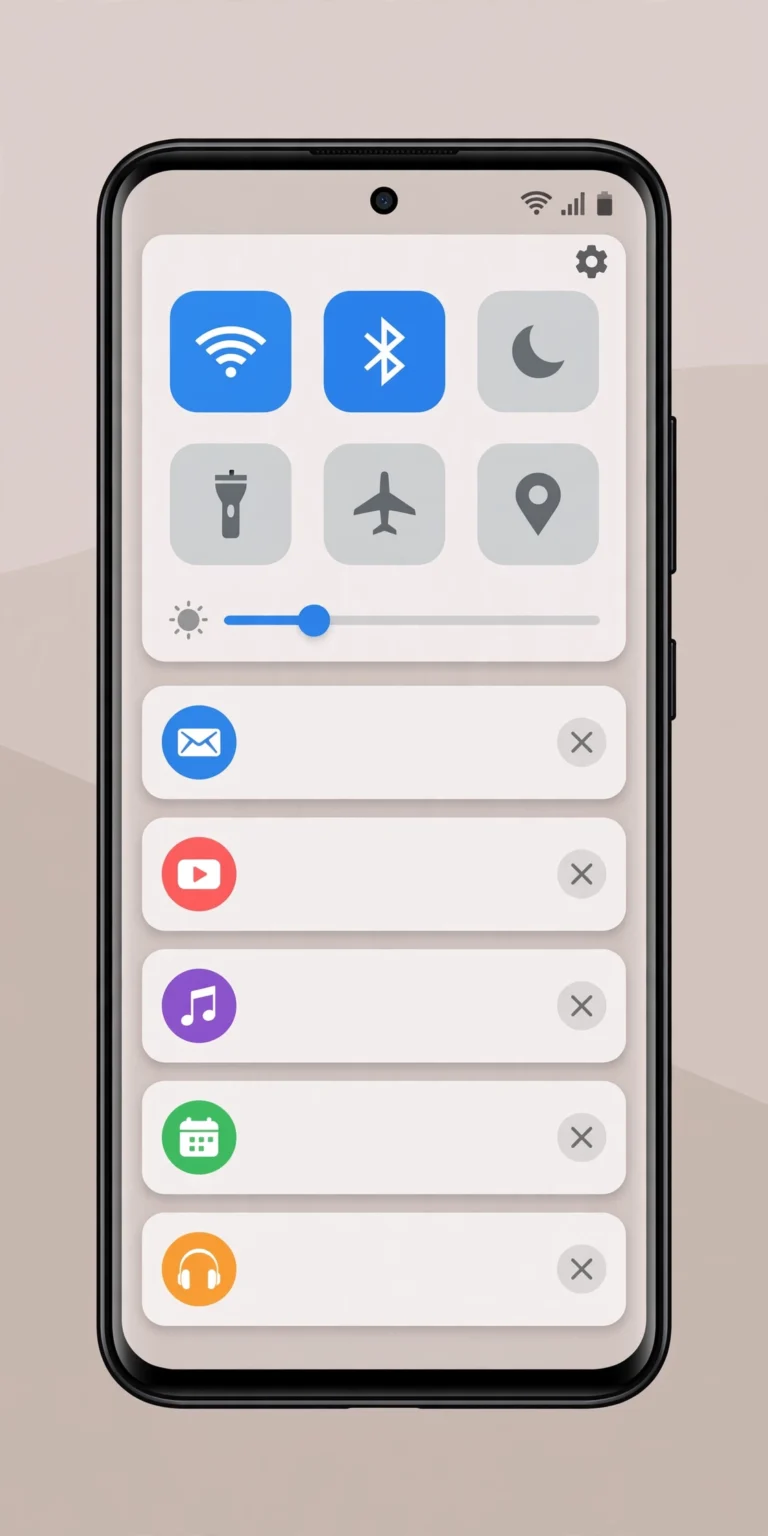
- Swipe down to open Quick Settings on your Android phone.
- Tap Screen Recorder. If you don't see it, tap the edit/pencil icon to add it.
- In the recorder settings, make sure audio source is set to capture media/system sound (not just the microphone).
Step 2: Play the TikTok Video
- Start recording, then switch to TikTok and play the video with the sound you want.
- Let the part you want play through, then stop the recording.
Step 3: Extract and Trim
Use the same video-to-MP3 converter from Method 1 on your screen recording, trim it down, and set it as your ringtone.
Tip: Turn your media volume to maximum before recording for the cleanest capture, and record in a quiet room so the microphone doesn't pick up background noise (if your recorder uses mic + system audio).
Setting Different Sounds for Different Things
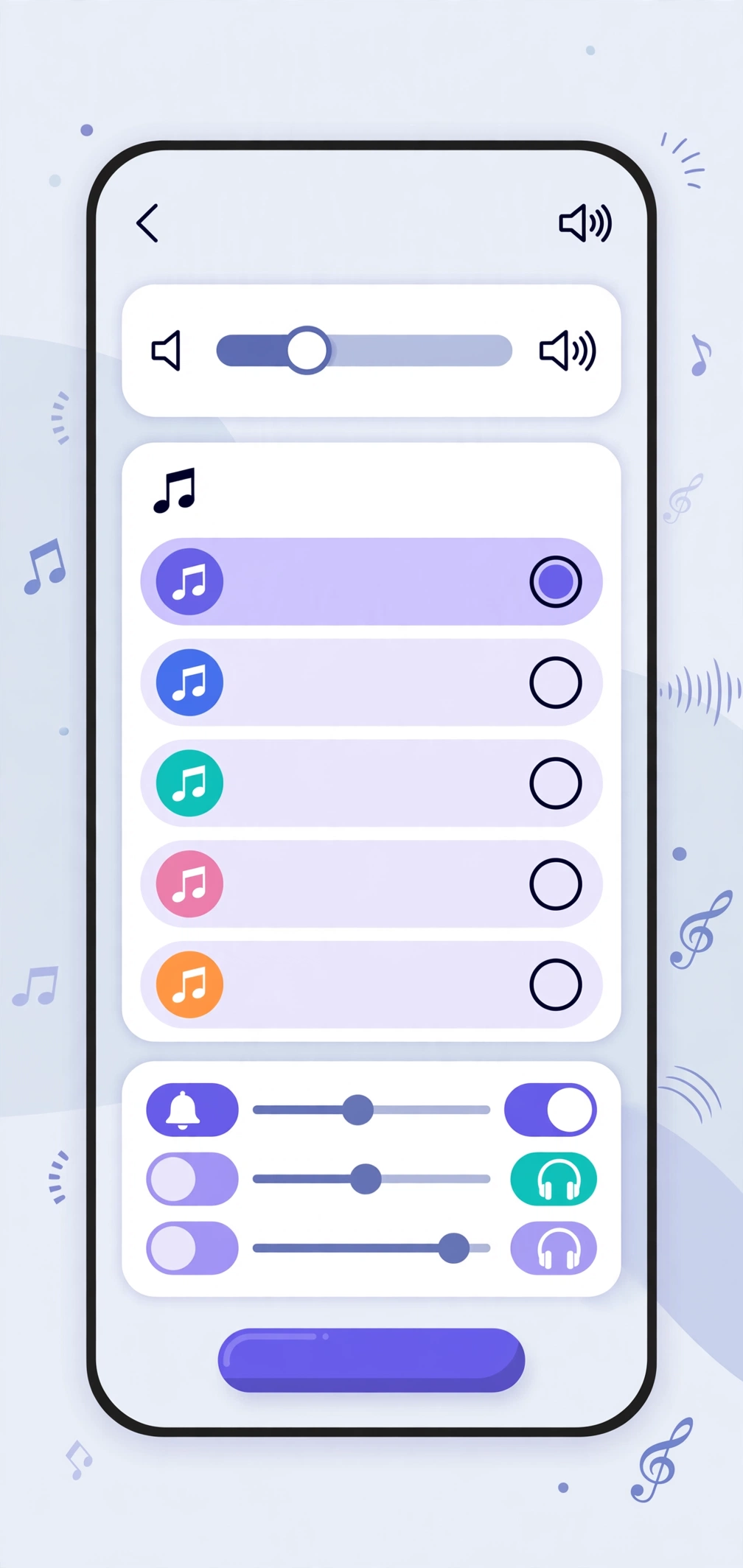
Your new audio file doesn't have to be just a ringtone. Use it for notifications via Settings > Sound & vibration > Default notification sound, for alarms via the Clock app, or per-contact via Contacts > select a person > Edit > Ringtone. If your file doesn't appear in a picker, move it into the Ringtones, Notifications, or Alarms folder with your file manager.
Tips for the Perfect TikTok Ringtone
- Keep it short. 15–30 seconds is the sweet spot. Anything longer gets annoying fast.
- Start strong. The first 3 seconds are what you'll hear most — pick a clip with an instant hook.
- Mind the volume. TikTok audio levels vary wildly. If your clip is too quiet or too loud compared to other sounds, use a free audio app to normalize the volume.
- Fade in and out. A harsh cut sounds jarring every time your phone rings. Most trimmer apps have a fade option — use 1–2 seconds on each end.
- Test it. Call yourself from another phone (or ask a friend to call) to hear how it actually sounds as a ringtone before committing.
Troubleshooting Common Issues
"I can't find the + button to add my ringtone." On Samsung phones: Settings > Sounds and vibration > Ringtone > tap the + at the top. On Pixel phones: Settings > Sound & vibration > Phone ringtone > My Sounds > Add. On Xiaomi/Redmi: Settings > Sound & vibration > Phone ringtone > choose from file manager.
"The sound quality is bad." Extracting audio from a compressed TikTok video loses quality. Try Method 2 (a clean audio source) for better results.
"My ringtone resets after a restart." This happens if the file is on a slow-mounting SD card. Move the MP3 to internal storage (in the Ringtones folder).
"Save video option is missing." The creator disabled downloads — use Method 3 (screen recording) instead.
Frequently Asked Questions
Is it legal to use a TikTok sound as my ringtone?
For personal use on your own phone, this is generally fine — like recording a song off the radio for yourself. Don't redistribute the audio or use it commercially without permission.
What audio format works best for Android ringtones?
MP3 is the safest choice — every Android phone supports it. M4A and OGG work on most phones, but MP3 has the widest compatibility.
How long should a ringtone be?
Around 20–30 seconds is ideal. Most phones loop the ringtone if you don't answer, so a short, punchy clip beats a full song.
Can I set a TikTok sound as my alarm?
Yes. Once you've saved the trimmed MP3, open your Clock app, edit an alarm, and choose the sound — your custom file appears in the picker like any ringtone.
Why doesn't my custom ringtone show up in the list?
Your phone may only look in specific folders. Move the MP3 into the "Ringtones" folder in internal storage, then check again.
Related Articles
- CapCut Video Editor Pro: Features, Tips & Pro Guide
- App Name Icon Changer: Customize Your Home Screen
- Android 12 Notification Features: Master Your Alerts
Conclusion
Turning a TikTok video into an Android ringtone takes just a few minutes once you know the steps: save or capture the sound, convert it to MP3, trim it to the best part, and set it in your sound settings. Whether it's a trending song, a funny voice clip, or a sound that just makes you smile, your phone can now ring with something that's uniquely yours. So go find that sound you've had stuck in your head — your next ringtone is one TikTok away.