How to Change App Names and Icons on Android (3 Easy Methods)
One of the best things about Android is that your phone doesn't have to look like everyone else's. You can change your wallpaper, your widgets — and your app names and icons too. Want to rename a confusingly titled app to something memorable, or give your home screen a whole new style? It's all possible, no root required.
Here are the three main methods: a custom launcher (most powerful), a dedicated icon changer app (simplest), and your phone's built-in theming tools.
Method 1: Use a Custom Launcher (Most Flexible)
A launcher controls your home screen and app drawer. Swapping your default launcher for a customizable one is the most powerful way to rename apps and change icons — changes apply everywhere, including the app drawer.
Step-by-Step with Nova Launcher
- Install Nova Launcher from the Play Store and open it.
- Set it as default when prompted (or Settings → Apps → Default apps → Home app → Nova).
- Change one app's icon: long-press the app on your home screen, tap the pencil/edit icon, then tap the icon image. Choose a built-in option, an icon pack, or any gallery image.
- Rename the app: in the same edit screen, tap the name field and type whatever you want. This only changes the display label — the app itself is untouched.
- Apply an icon pack to everything: long-press empty home-screen space → Nova Settings → Look & feel → Icon theme → pick your pack.
- Fine-tune icon size and shape under Look & feel to match your wallpaper.
Other Launchers Worth Trying
- Lawnchair: Clean, Pixel-style, free and open source. Stock Android look with extra customization.
- Smart Launcher: Auto-organizes apps into categories with a modern layout. Great if you want style without fiddling.
- Apex Launcher: A solid Nova alternative with its own themes and icon tools.
Method 2: Use a Dedicated Icon Changer App (Simplest)
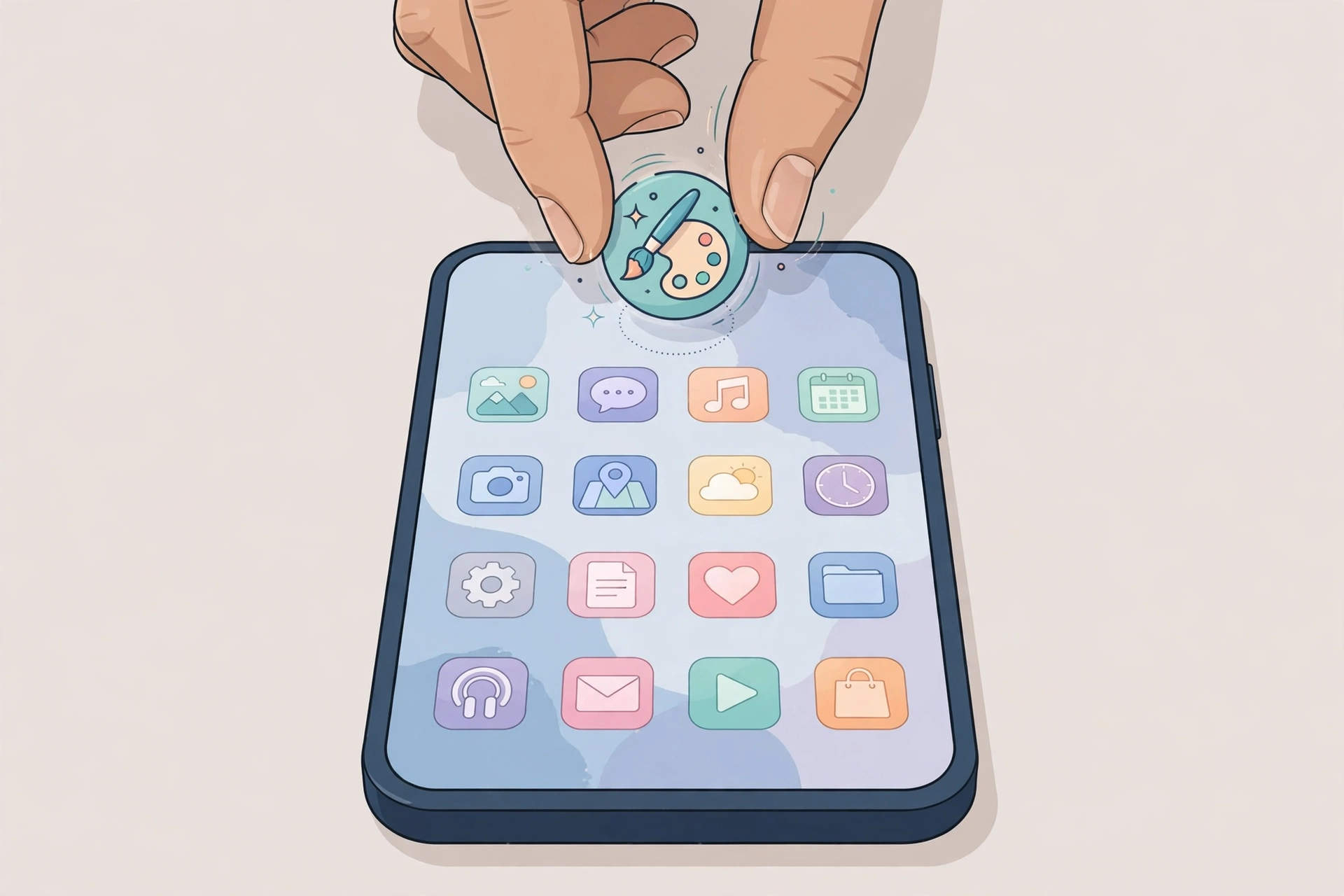
Don't want to replace your whole launcher? An icon changer app is the lighter option. It creates a customized shortcut on your home screen with your chosen icon and name, while the original app stays as-is in the app drawer.
Step-by-Step
- Install an icon changer app from the Play Store (the well-rated ones have millions of downloads).
- Open it and allow it to add shortcuts to your home screen.
- Select the app you want to customize.
- Choose a new icon — from the built-in library, an icon pack, or any photo in your gallery.
- Type a new name in the label field (emojis welcome).
- Tap Create. The shortcut appears on your home screen — drag it where you like.
- Optional: remove the original icon from your home screen so only your custom version shows. Don't uninstall the original app — the shortcut needs it.
Honest Pros and Cons
Pros: No launcher switch needed; quick setup; easy to revert by deleting the shortcut.
Cons: Changes show only on the home screen, not the app drawer; some apps display a tiny shortcut badge; notification icons are unaffected.
Method 3: Use Your Phone's Built-In Theming
Check what your phone already offers before installing anything:
- Samsung (One UI): Settings → Themes → Icons. Free and paid packs change every icon system-wide — home screen and app drawer. You can't rename apps this way, but it's the cleanest full refresh.
- Xiaomi / Redmi / POCO: The Themes app applies icon packs across the whole system; many themes also restyle fonts and menus.
- Google Pixel: Settings → Wallpaper & style → Themed icons tints icons to match your wallpaper. Full custom packs need a launcher.
Built-in theming changes icons but almost never allows renaming. Pair it with Method 1 or 2 if custom names matter to you.
Best Icon Packs Worth Trying
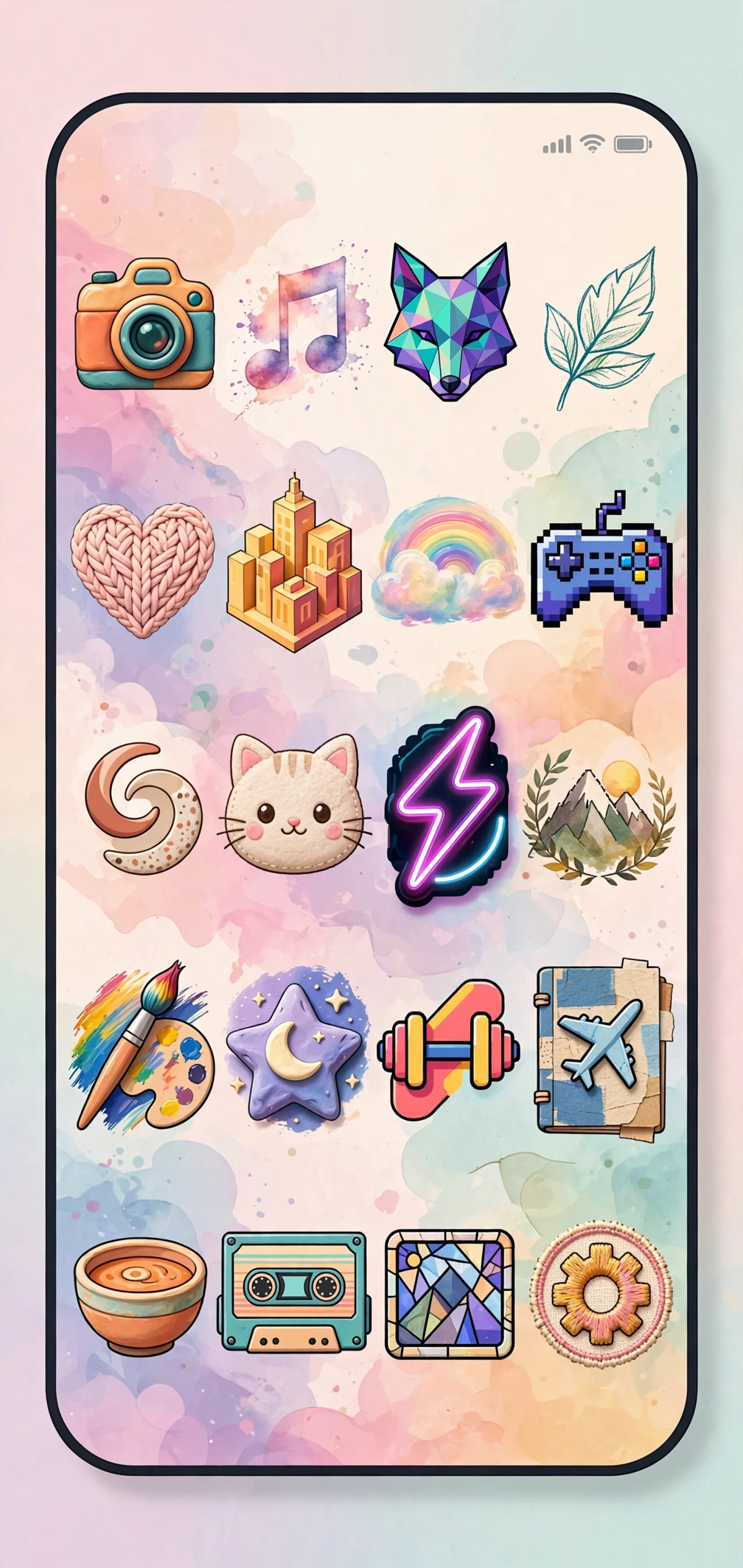
- Whicons: All-white line icons. Stunning on dark wallpapers. Free.
- PixBit: Retro pixel-art style for 8-bit lovers.
- Lines / Linebit: Minimal outline icons in modern color themes.
- Flight: Bold, polished, colorful rounded icons. One of the best paid packs.
- Crayon Icon Pack: Soft hand-drawn style for a playful home screen.
- Viral: Dark, moody set for AMOLED screens — also saves a little battery on OLED displays.
Most packs cost $1–2 and cover thousands of apps, with new icons added in updates. Check screenshots to confirm your most-used apps are covered.
Tips for a Great-Looking Home Screen
- One style only. Mixing minimal and neon packs looks messy — consistency is what makes custom setups look professional.
- Match your wallpaper. Dark wallpaper with light icons (or vice versa) keeps everything readable.
- Rename for clarity. Short names ("Bank," "Notes") scan faster than full official titles.
- Back up your launcher layout. Nova and others let you export your setup — do it before switching phones.
Troubleshooting
Icons disappeared after a restart
Battery optimization is usually the culprit. Exclude your launcher from it (Settings → Battery → App battery usage) and the problem typically stops.
The icon pack misses some apps
Manually assign icons: in Nova, long-press the app → edit → tap the icon → pick a fitting alternate from the pack.
Shortcut shows a badge or opens slowly
Normal for icon changer apps. If it bothers you, switch to the launcher method — it's seamless.
"App not installed" when tapping a shortcut
The shortcut lost its link, usually after an app update. Delete it and recreate it in the icon changer app.
Frequently Asked Questions
Can I change app icons without a launcher?
Yes. Icon changer apps create custom home-screen shortcuts with no launcher switch required. The trade-off: changes appear only on the home screen, not the app drawer. Samsung and Xiaomi phones also have built-in theme stores with system-wide icon packs.
Does renaming an app affect how it works?
Not at all. Renaming only changes the displayed label. The app, its data, notifications, and Play Store listing all keep the original name. Change it back anytime.
Will custom icons slow down my phone?
Barely. A launcher uses a little extra memory, but on any modern phone the difference is negligible. On very old phones (under 3GB RAM), prefer the lightweight icon changer method over a heavy launcher.
Are icon changer apps safe?
Stick to well-known apps with millions of downloads and recent updates. They only need permission to create home-screen shortcuts — be suspicious of any icon changer asking for contacts, SMS, or accessibility access.
Can I use my own photos as icons?
Yes. Both Nova and most icon changer apps accept any gallery image. Use square, tightly cropped images so the icon stays recognizable at small sizes.
Related Articles
- Android 12 Notification Features You Should Know
- TikTok Video to Ringtone on Android
- CapCut Video Editor Pro: Complete Guide
Conclusion
Changing app names and icons is one of the easiest ways to make your Android phone feel truly yours. Want full control? Install Nova Launcher and an icon pack. Want a quick refresh? Grab an icon changer app and restyle your home screen in ten minutes. Start small, pick one consistent style, and enjoy a home screen that finally looks the way you want.