
Free Call Online: How to Make Calls Over the Internet Without Paying
Phone credit running low but you need to make a call? Good news: you can make a free call online using nothing but an internet connection. Whether it's Wi-Fi at home or mobile data on the go, modern apps let you call anyone — voice or video — without spending a single rupee on traditional phone charges.
In this guide, we'll walk through the main ways to call for free online, the best apps for the job, a simple setup walkthrough, and practical tips to keep your call quality crisp and clear.
What Does "Free Call Online" Actually Mean?
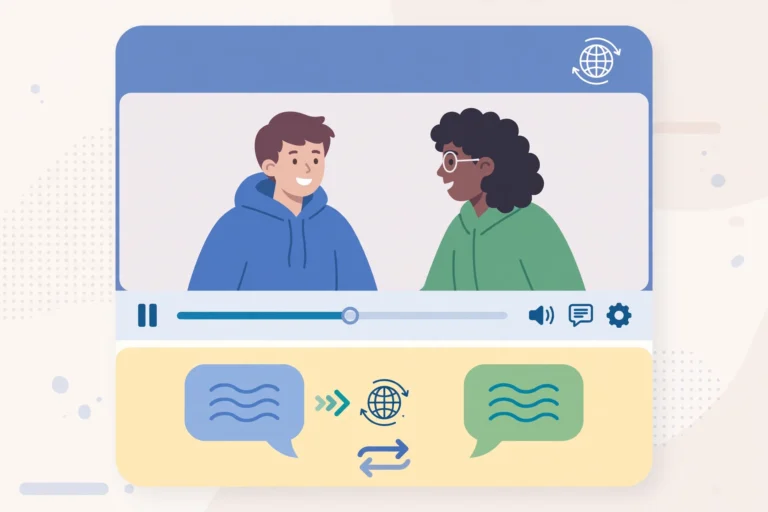
A free call online means your voice travels over the internet instead of the traditional phone network. This technology is called VoIP (Voice over Internet Protocol). Instead of your carrier's cell towers carrying the call, your Wi-Fi or mobile data does the job.
There are two main types:
- App-to-app calls: You and the person you're calling both use the same app (like WhatsApp or Telegram). These calls are completely free — you need internet on both ends.
- App-to-phone calls: Some apps let you call real phone numbers for free or very cheaply, often with ad support or limited free minutes.
App-to-app calling is the easiest and truly free option, and it's what most people use daily.
The Best Apps for Free Online Calls
The most popular choice worldwide. Voice and video calls are free between WhatsApp users, the quality is excellent, and almost everyone already has it installed. Group calls support up to 32 people. If your contacts are on WhatsApp, this is your simplest option.
Telegram
Telegram's voice and video calls are fast, secure, and free. Call quality is consistently good, even on weaker connections. It's a great alternative if you prefer Telegram's interface or your contacts use it.
Google Meet
Perfect for longer or more formal calls. Free for one-on-one calls of up to 24 hours, and group calls up to 60 minutes. Works in a browser or the app.
Zoom
The free plan allows 40-minute group meetings and unlimited one-on-one calls. Excellent audio quality, widely used for work and family calls alike.
Skype
One of the originals. Free Skype-to-Skype calls worldwide, plus the option to call real phone numbers at low rates (with some free trial credit for new users in certain regions).
Facebook Messenger
If you and your contacts are on Facebook, Messenger's free voice and video calls work well, with fun filters if you want them.
Signal
For privacy-minded users, Signal offers free, end-to-end encrypted voice and video calls with great quality.
How to Make a Free Call Online: Step-by-Step
Let's use WhatsApp as the example since it's the most common, but the steps are similar in every app.
Step 1: Install the App
Download WhatsApp (or your preferred app) from the Google Play Store. Make sure you're connected to Wi-Fi or have mobile data turned on during setup.
Step 2: Create Your Account
Open the app and register with your phone number — you'll get an SMS verification code to enter. This is a one-time step. Then grant the app access to your contacts (to find people) and your microphone (so they can hear you); allow camera access too if you want video calls.
Step 3: Find Your Contact and Call
Open your contacts list inside the app — anyone with the app installed appears as available. Tap the phone icon for a voice call or the camera icon for a video call. The call connects over the internet and costs nothing beyond your data. Use the on-screen buttons to mute, switch cameras, turn on speakerphone, or add people for a group call.
Wi-Fi vs. Mobile Data: Which Is Better for Calls?
Both work, but there are differences worth knowing:
- Wi-Fi is usually the better choice — stable, fast, and doesn't eat into your mobile data. A voice call uses roughly 0.5–1 MB per minute; video calls use much more (around 5–15 MB per minute).
- Mobile data works fine on 4G and 5G. On slower or weak signals, stick to voice calls and turn off video to avoid freezing.
- Switching mid-call can cause a brief interruption as your phone hops between Wi-Fi and mobile data.
Data-saving tip: If you're on a limited data plan, use voice calls instead of video, and disable HD video in the app's settings.
Tips for the Best Call Quality
A free call is only good if the other person can actually hear you. Here's how to keep things clear:
- Get close to your router on Wi-Fi calls. A weak signal is the number one cause of choppy audio.
- Close background apps that might be using bandwidth — especially video streaming or large downloads.
- Use earphones or a headset. This reduces echo dramatically and makes you sound clearer. Even basic wired earphones help.
- Find a quiet spot. Background noise competes with your voice — a quiet room beats a busy street.
- Update the app. Developers constantly improve call stability; an outdated app causes avoidable glitches.
- Try a different app if one consistently struggles on your connection — different apps handle weak networks differently.
Making Free Calls to Real Phone Numbers
What if the person you're calling doesn't use any app? A few options exist:
- Google Voice (available in some regions) lets you call US and Canadian numbers for free.
- Skype offers free trial credit for new users to test calls to real numbers.
- TextNow and similar apps give you a free virtual number with free calls to US/Canada numbers, supported by ads.
- Carrier Wi-Fi calling: Many carriers let you make regular calls over Wi-Fi when cellular signal is weak — check your phone's settings. These use your normal plan minutes but work where there's no signal.
Availability varies by country, so check which options work in your region.
Common Problems and Quick Fixes
Call keeps dropping: Your connection is unstable. Move closer to the router, switch to Wi-Fi, or restart your router.
The other person can't hear me: Check microphone permission (Settings > Apps > [App name] > Permissions) and make sure nothing covers your phone's mic.
Echo during calls: Usually caused by speakerphone. Switch to earphones or lower the speaker volume.
Video freezes but audio continues: Your connection can't handle video bandwidth. Turn off your camera or move to a stronger signal.
App won't connect at all: Update the app, restart your phone, and confirm your internet works.
Frequently Asked Questions
Is making a free call online really 100% free?
App-to-app calls (like WhatsApp to WhatsApp) are completely free — you only use your internet connection. There are no per-minute charges. Just watch mobile data usage if you're not on Wi-Fi, since video calls consume a lot of data.
Do both people need the same app?
For app-to-app calls, yes. That's why it's worth having two or three popular apps installed — most people you know will be on at least one of them.
Can I make free calls without a smartphone?
Yes. Services like Google Meet and Zoom work in any web browser on a computer — you just need a microphone and an internet connection.
How much data does a free online call use?
A voice call uses about 0.5–1 MB per minute — very little. Video calls are heavier, around 5–15 MB per minute. An hour-long voice call uses less data than a few minutes of YouTube.
Why do my free calls sound bad on mobile data?
Weak or congested signals cause most quality issues. Move to better reception, switch to Wi-Fi, turn off video, or close other apps using data in the background.
Related Articles
- Best Free Unlimited Call Online: Top Apps Compared
- Free Internet MTN: Legit Ways to Get Connected
- Android 12 Notification Features: Master Your Alerts
Conclusion
Making a free call online is one of the simplest ways to stay connected without worrying about phone credit. Pick an app your contacts already use, make sure your connection is solid, and you're set. With decent Wi-Fi and earphones, free internet calls can sound just as good as traditional calls — and they won't cost you a thing.