How to Set a Photo as Your WhatsApp Home Screen Wallpaper: Step-by-Step
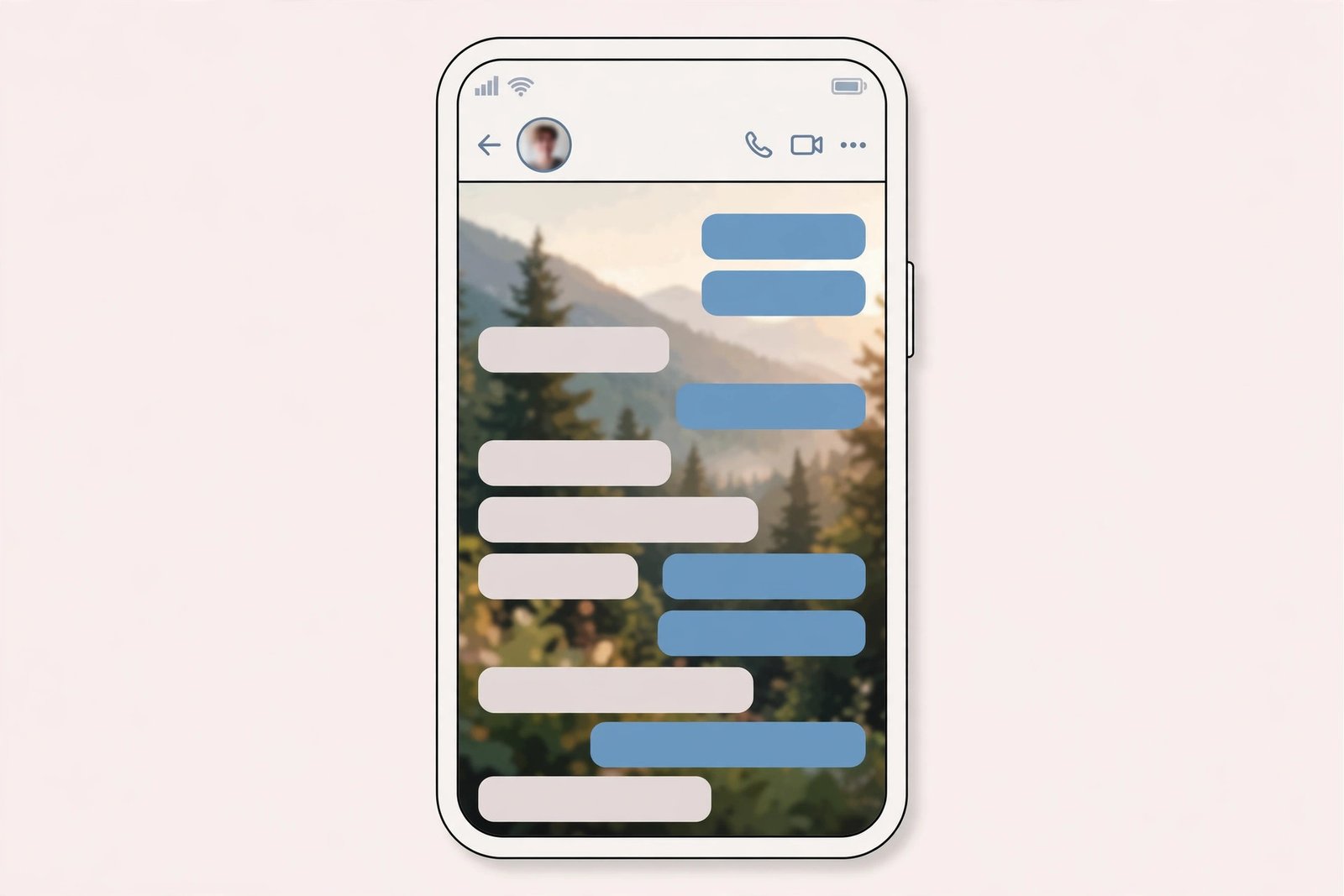
WhatsApp is where most of our daily conversations live — family groups, work chats, late-night catch-ups with old friends. Yet most people never touch its appearance settings. Learning how to set a photo as your WhatsApp home screen wallpaper takes about two minutes, and it turns a plain messaging app into something that feels personal every single time you open it.
In this guide, you’ll learn how to choose the right photo, optimize it for readability, and set it as your WhatsApp wallpaper on both Android and iPhone — plus a few extra customization ideas that most users completely miss.
Why Personalize Your WhatsApp Wallpaper?
Your phone’s home screen probably already reflects your taste, so why should your most-used app look generic? A custom WhatsApp wallpaper:
- Adds personality. A favorite photo, a calming landscape, or an inspiring quote greets you inside every conversation.
- Lifts your mood. Small visual pleasures compound across dozens of app opens per day.
- Helps you navigate. Distinct wallpapers make it easier to tell chats apart at a glance — especially once you try per-chat wallpapers.
It’s a tiny change with an outsized feel-good factor. And if you’re already giving your phone a full makeover, personalizing WhatsApp is the natural next step.
Choosing the Right Photo
Not every photo works well behind chat bubbles. Keep these principles in mind before you pick one:
- Choose something meaningful — loved ones, pets, travel memories, or artwork you genuinely love looking at.
- Avoid visual clutter. Busy photos with dense detail compete with message text. Simpler compositions always win here.
- Mind the brightness. Extremely bright or very dark images strain the eyes during long chats. Mid-tone photos are the most comfortable.
- Consider dark mode. If you use WhatsApp’s dark theme, preview how the photo sits behind dark chat bubbles before committing.
Landscape shots of skies, beaches, mountains, and softly blurred backgrounds are consistently excellent choices because they stay readable behind text without any editing.
Optimize Your Photo Before Setting It
Two minutes of preparation makes the final result dramatically better:
- Use a high-resolution image. Low-resolution photos turn visibly pixelated when stretched across the screen. Always pick the original file, not a compressed forward from another chat.
- Crop to portrait orientation. Your phone screen is tall and narrow, so a portrait or square crop fills it best. Nearly every gallery app can crop in seconds.
- Soften busy images. If a photo is too detailed, apply a slight blur or reduce brightness in your gallery editor — WhatsApp also provides a brightness slider at setup time.
- Check the contrast mentally. Picture white and dark chat bubbles over the image: will text stay easy to read? If you’re unsure, dim the photo a little more than feels necessary. It always looks better slightly darker.
How to Set a Photo Wallpaper on Android
- Open WhatsApp and confirm it’s updated to the latest version.
- Tap the three-dot menu in the top-right corner, then tap Settings.
- Tap Chats, then tap Wallpaper.
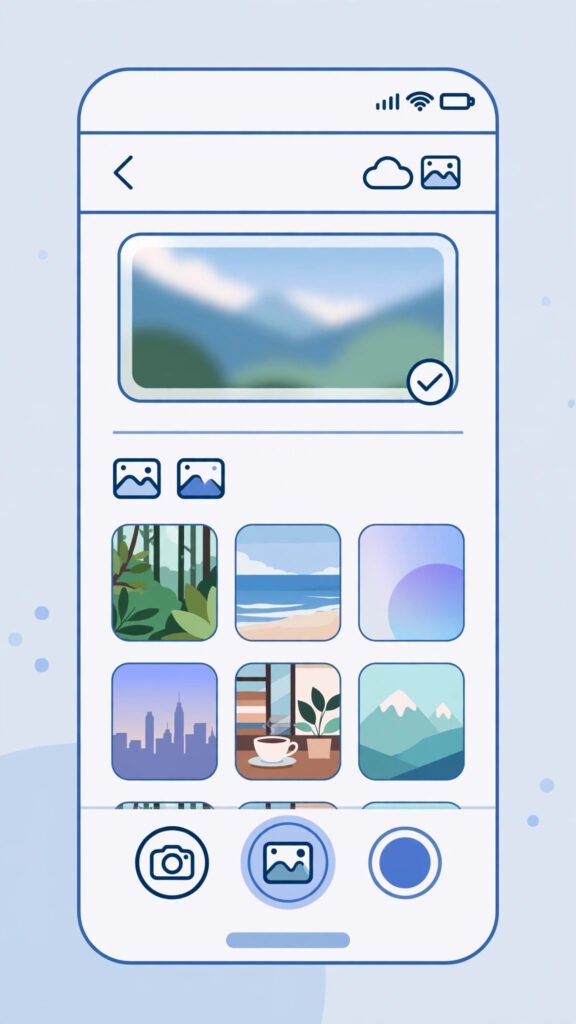
- Tap Change, then choose My photos (or Gallery, depending on your phone).
- Browse and select the photo you prepared.
- Adjust it — drag to reposition, pinch to zoom, and drag the brightness slider at the bottom to dim it for readability.
- Tap Set Wallpaper. Done — your photo now appears behind every chat.
Bonus: per-chat wallpapers. Open any individual conversation, tap the contact or group name at the top, then tap Wallpaper and choose Change. This gives that specific chat its own background — ideal for instantly distinguishing your family group from work threads.
How to Set a Photo Wallpaper on iPhone
- Open WhatsApp and tap the Settings tab in the bottom-right corner.
- Tap Chats, then tap Chat Wallpaper.
- Tap Choose a New Wallpaper, then select Photos.
- Pick your image from the camera roll.
- Adjust the positioning to your liking, then tap Set.
- Your new wallpaper applies across all chats immediately.
iPhone users get the same brightness control during setup, so don’t skip the dimming step if your chosen photo is vivid or high-contrast.
Wallpaper Options Compared
| Option | Look and feel | Best for |
|---|---|---|
| Custom photo | Personal and unique | Daily inspiration |
| Solid color | Clean and minimal | Maximum readability |
| Default doodle patterns | Playful and lightweight | A fresh look with zero effort |
There is no wrong answer here. Many people use a calm solid color for work-related chats and a personal photo everywhere else. Experiment until the app feels like yours.
Tips for the Best Results
- Match your phone’s theme. If your Android setup uses a specific accent color, echo it in your WhatsApp wallpaper for one cohesive look from home screen to chat screen.
- Refresh seasonally. Swap the photo every few months — a tiny ritual that keeps the app feeling new.
- Keep group chats calm. Busy group conversations with dozens of daily messages stay far more readable over subtle backgrounds.
- Don’t ignore the brightness slider. It is the single most impactful control in the whole process; a photo dimmed to roughly half brightness looks premium and keeps every message crisp.
- Keep a wallpaper album. Save a small collection of wallpaper-ready photos in your gallery so you can switch in seconds whenever the mood strikes.
- Test both themes. If you alternate between light and dark mode, check the wallpaper under both before settling.
- Coordinate with chat theme colors. If you use WhatsApp’s colored chat themes, pick wallpaper tones that complement them instead of clashing — harmony beats contrast here.
Frequently Asked Questions
Will my contacts see my new wallpaper?
No. Wallpaper is entirely personal — it only changes what appears on your own phone. Your contacts see their own settings.
Can I set different wallpapers for different chats?
Yes, on both Android and iPhone, using the per-chat wallpaper option described in the Android steps above.
Does a photo wallpaper use more battery or storage?
Negligibly. A single compressed image has no meaningful impact on battery life or storage space.
Can I go back to the default wallpaper?
Anytime. Return to the same Wallpaper settings and pick a default pattern or solid color.
Why does my photo look stretched or cut off?
The source image’s aspect ratio doesn’t match your screen. Crop it to portrait orientation before setting it, and use the pinch-to-adjust step during setup.
Conclusion
Setting a photo as your WhatsApp home screen wallpaper is one of the simplest upgrades in the entire phone-customization world: pick a meaningful photo, optimize it lightly, and set it in under two minutes. The payoff is a messaging app that feels unmistakably yours every time you open it.
And why stop at chats? Complete the transformation with an iPhone-style call screen for incoming calls, and enjoy a phone that feels personalized from the lock screen to the very last chat bubble.