iPhone-Style Caller Screen on Android: The Complete Setup Guide
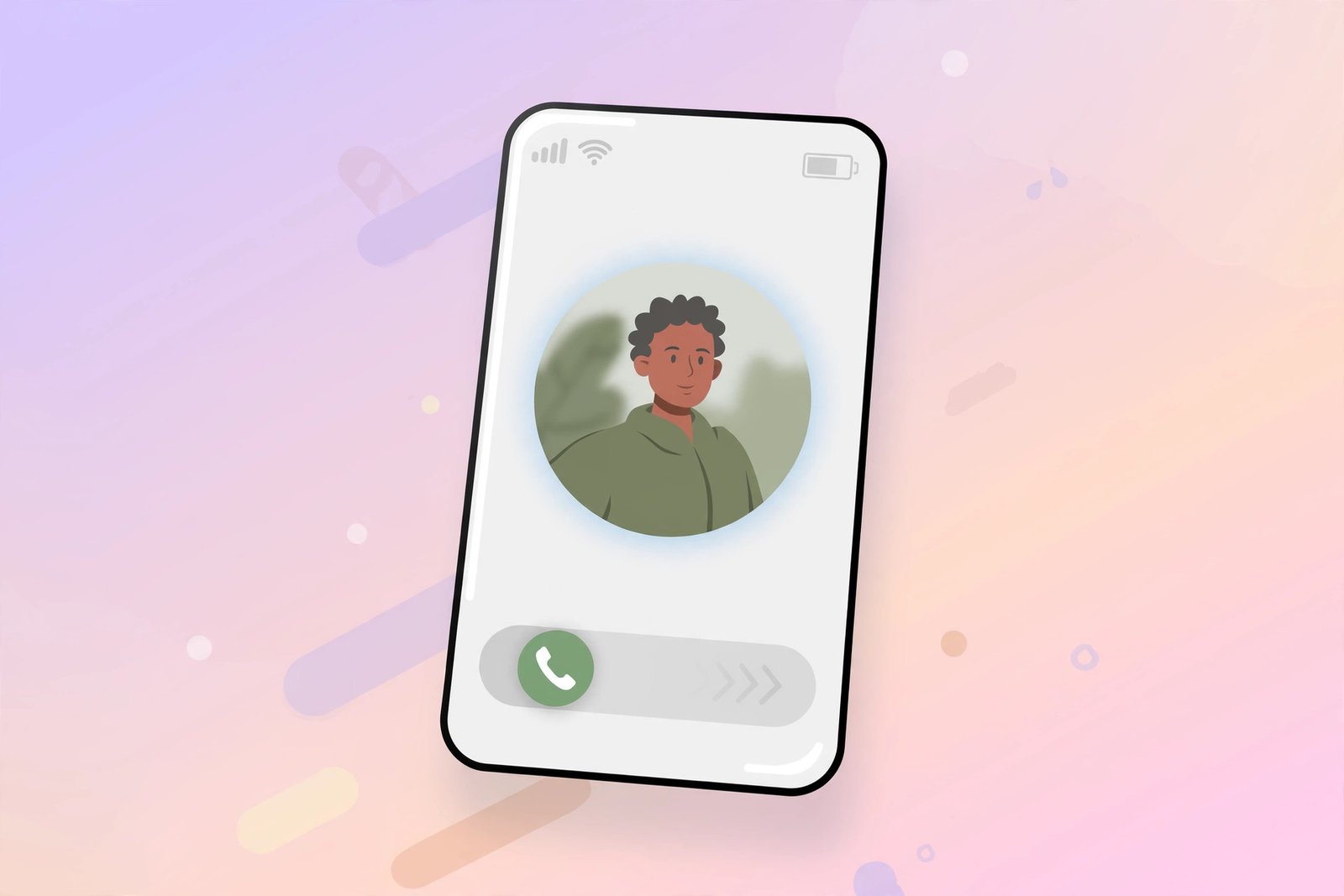
If you have ever watched an iPhone user answer a call, you know the interface looks effortlessly polished: a large contact photo, a simple swipe-to-answer slider, and smooth, fluid animations. Plenty of Android users admire that look — and the good news is that you can get an iPhone-style caller screen on Android without buying a new phone.
In this guide, you will learn exactly how to transform your Android call screen into an iPhone-style experience. We will cover why people love the iOS design, the best apps for the job, a step-by-step setup walkthrough, creative customization ideas, troubleshooting fixes, and the privacy settings you should double-check. Let’s get started.
Why Android Users Want the iPhone Call Screen
Android’s default call screen gets the job done, but it looks different on every brand. Samsung, Xiaomi, Pixel, and OnePlus phones each show something slightly different, and none of them match the refined consistency of iOS. The iPhone call interface is famous for its minimal layout: big, clear buttons, a full-screen caller photo, and buttery transitions between states.
The appeal is part aesthetic and part practical. A full-screen photo makes it instantly obvious who is calling, even from across the room. Large answer and decline controls are harder to mis-tap when you’re in a hurry. And if you already use iOS-inspired themes elsewhere on your phone, a matching call screen pulls the entire look together into one cohesive experience.
iPhone-Style vs. Stock Android: What’s Different
| Aspect | iPhone-style caller screen | Stock Android caller screen |
|---|---|---|
| Layout | Minimal, centered design | Varies by manufacturer |
| Caller photo | Full-screen display | Small circular thumbnail |
| Answer gesture | Swipe slider or large buttons | Tap buttons or swipe |
| Themes | Multiple styles, fonts, and colors | Very limited options |
| Ringtones | iOS-style tones built in | System defaults only |
The biggest upgrade is visual consistency. Instead of a different call screen every time you switch phone brands, an iPhone-style app gives you the same refined look on any device.
The Best Apps for an iPhone-Style Call Screen
Dozens of apps promise this transformation. Here are the most popular and reliable options (names mentioned for reference only — find them with a quick search in your app store):
| App | Standout features | Best for |
|---|---|---|
| iOS Caller Screen | Themes, colors, and layout options | Quick, simple setup |
| Incoming Call Screen Changer | Broad device compatibility | Older Android phones |
| Caller Screen Tech Same TV | Deep customization and animations | Users who want total control |
| Call Screen Tech Sam | Faithful iPhone-style recreation | iOS design purists |
| Call Flash – Color Phone | Large library of animated themes | Bold, flashy styles |
| Call Screen Changer | Custom photos and video backgrounds | Personal media lovers |
What to Look for in a Good Call Screen App
Before installing, run through this quick checklist:
- Recent updates. Call-screen apps need ongoing maintenance to keep working with new Android versions. Avoid anything untouched for over a year.
- Strong ratings with real review volume. Thousands of reviews at 4+ stars is a healthy sign; a perfect 5.0 with twelve reviews is not.
- Sensible permission requests. Phone, contacts, and “display over other apps” are legitimate. Location, SMS, or file access are red flags.
- Theme variety. The best apps ship multiple iPhone styles — classic white, dark mode, and a few animated options.
- An easy way back. A good app lets you restore the default Android screen in one tap.
How to Set It Up: Step-by-Step
Follow these steps to get your iPhone-style caller screen on Android running in under ten minutes:
Step 1: Pick and install an app. Open your phone’s app store, search for “iOS caller screen” or “incoming call screen,” and install one of the apps from the table above.
Step 2: Grant the required permissions. The app will ask for access to your phone calls, your contacts, and the ability to display over other apps. These permissions are genuinely necessary — without them, the app cannot detect incoming calls or draw its interface on top of the system screen.
Step 3: Set it as your default calling screen. Most apps include a prominent “set as default” button. This tells Android to use the new screen instead of the built-in one whenever a call arrives.
Step 4: Choose an iPhone-style theme. Browse the theme gallery and pick the classic iOS look: light or dark mode, the swipe-to-answer slider, and the familiar accept/decline button layout.
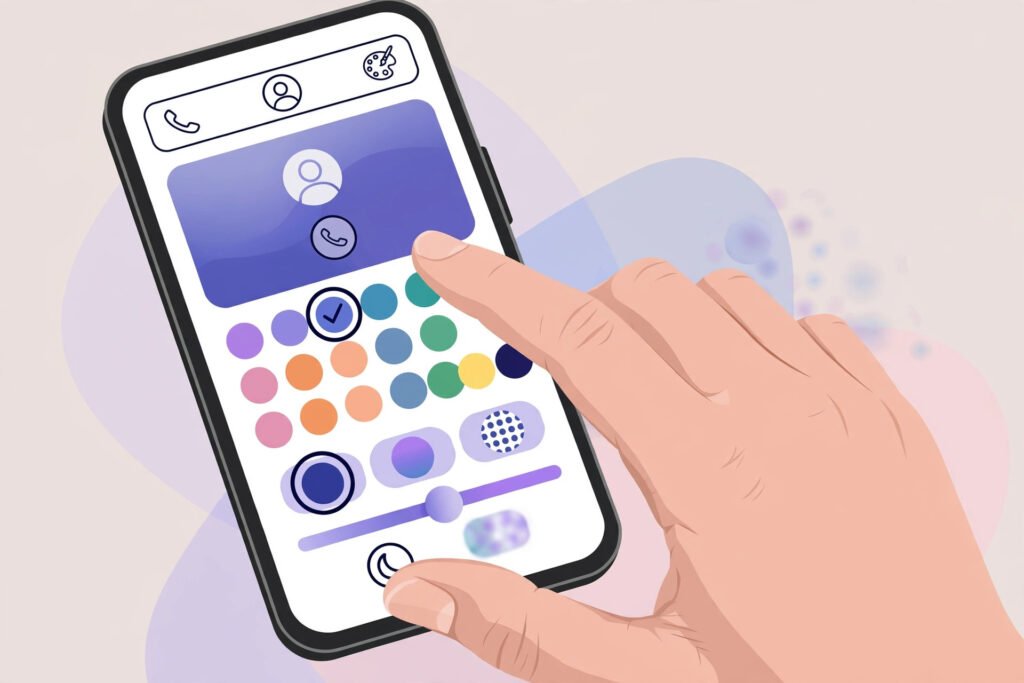
Step 5: Customize the details. Change the background, button style, font, and ringtone. Assign full-screen photos to your favorite contacts so you recognize callers instantly.
Step 6: Make a test call. Ask a friend to call you, or ring yourself from another phone. Confirm the new screen appears, the buttons respond correctly, and the ringtone plays.
Step 7: Fine-tune the settings. If anything looks off — a delayed ring, a missing photo, a theme that doesn’t fit — revisit the app’s settings. Most issues are resolved with one or two toggles.
Make It Yours: Customization Ideas
The real fun starts after setup. Try these ideas to make the screen feel like yours:
- Full-screen contact photos: Assign large, high-quality photos to family and close friends so every call feels personal.
- Automatic dark mode: Many apps can switch between light and dark themes based on the time of day.
- Custom ringtones: Pair the iPhone look with classic iOS-style tones, or assign a unique ringtone to each important contact.
- Video backgrounds: Some apps let you set short looping videos behind the incoming-call interface for extra flair.
- Spam screening: A few apps bundle caller ID and spam-blocking features that work alongside the iPhone-style design.
If you enjoy this kind of transformation, you can give your whole home screen the same premium treatment with a complete Android customization guide.
Troubleshooting Common Issues
The new screen doesn’t appear on incoming calls. First, confirm the app is set as your default phone screen. Then verify you granted every permission, especially “display over other apps.” On Samsung and Xiaomi phones, also exempt the app from battery optimization — aggressive power saving is the single most common cause of this problem.
Calls feel laggy or the ring is delayed. Clear the app’s cache, restart your phone, and switch to a lighter theme without heavy animations. Keeping the app updated also helps, since developers regularly ship performance fixes.
It conflicts with another caller-ID app. Two apps fighting over the call screen causes glitches and missed rings. Choose one, set it as default, and disable or uninstall the other.
Contact photos look blurry. The full-screen layout magnifies every pixel, so replace low-resolution contact photos with sharper images.
The app stops working after a system update. Re-open the app and re-grant permissions; Android updates sometimes revoke “display over other apps” access silently.
Battery, Performance, and Privacy
Call-screen apps run in the background, so a little maintenance goes a long way. Keep the app updated, avoid overly animated themes on older phones, and turn off extra features you never use.
Privacy deserves special attention, because any call-screen app can see who calls you and when. Protect yourself with three habits:
- Install only well-reviewed apps from established developers, and confirm they were updated recently.
- Review every permission. A call-screen app legitimately needs phone and contacts access, but it has no business asking for your location, messages, or files.
- Skim the privacy policy to see how your data is stored and whether it is shared with third parties.
With those precautions in place, you can enjoy the iPhone aesthetic without compromising your personal information.
Frequently Asked Questions
Will this work on my Samsung, Xiaomi, or Pixel phone?
Yes. These apps are built for all Android brands. If one app misbehaves on your specific device, try another from the list — compatibility varies between apps, not just phones.
Can I switch back to the normal Android call screen?
Absolutely. Either restore the default inside the app’s settings or simply uninstall the app — your original call screen returns immediately.
Is it free?
Most of these apps are free with ads. Many offer an optional premium version that removes ads or unlocks extra themes, but the core iPhone look costs nothing.
Will it drain my battery?
The impact is minimal on modern phones. If you notice unusual drain, switch to a simpler theme without animations and make sure the app is on its latest version.
Do I need to root my phone?
No. Everything described here works on standard, unmodified Android.
Conclusion
Getting an iPhone-style caller screen on Android is one of the easiest visual upgrades you can make: install an app, grant a few permissions, pick a theme, and every incoming call suddenly looks clean and premium. Add full-screen contact photos and matching ringtones, and the transformation feels complete.
Ready for more personalization? Give your chats the same treatment with a custom WhatsApp wallpaper, and keep exploring ways to make your phone truly yours.